

Signing up to a cloud service like Office 365 means you’re on board for whatever changes the vendor deploys to customers. That is one benefit of cloud services, but some customers see it as a risk and prefer to at least make sure they are not the first customers to receive new features. Other customers prefer to be slower to receive new features to allow time for following appropriate change management processes and preparing end user communication. Microsoft accommodates these needs with the concept of Targeted Release for Office 365 tenants.
When a new feature or change is developed for Office 365, Microsoft first releases it to their own internal development teams, the broader Office 365 product group, and then roll it out to their corporate user base. For some developments there may also be a preview program that customers or third party vendors can take part in to see the early versions of the feature and provide testing feedback.
When the time comes to release a feature to the general customer base, it first goes to tenants who have opted in for Targeted Release (formerly known as First Release). Targeted Release customers will receive the new feature anywhere from a few weeks to a few months ahead of the general customer base.
Gaining access to new features first is appealing to some customers, such as those who provide consulting or training to other customers. In return, Targeted Release customers must accept the risk (albeit a low risk) that some bugs or problems might appear in the feature as it is rolling out. You should not be taking part in Targeted Release if you’re not willing to accept that risk.
To view your release configuration, log in to the Office 365 admin portal and navigate to Settings, and then Organization profile. Then, click on the Edit button next to Release preferences.
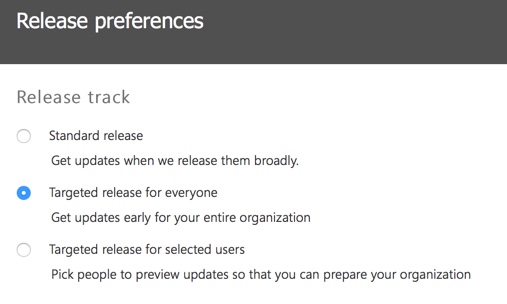
The options you can choose from are:
- Standard release – your tenant receives updates as they roll out to the general Office 365 customer base. You might still receive updates before or after other tenants because features roll out in stages instead of to all customers at once.
- Targeted release – your tenant will be among the first to receive updates.
- Targeted release for selected users – individual users you select in your tenant will receive updates before the rest of your organization’s users.
By default, an Office 365 tenant is configured for Standard release.
You can check the release configuration for a tenant by connecting to Exchange Online and running the Get-OrganizationConfig cmdlet.
PS C:\> Get-OrganizationConfig | Select ReleaseTrack

ReleaseTrack
------------
StagedRollout
Note that in the example above, StagedRollout shows that “Targeted release for selected users” is configured. If you’ve configured your tenant for staged rollout, you can check the list of individual users who are enabled for Targeted Release by connecting to Office 365/Azure AD and running Get-MsolUser.
PS C:\> Get-MsolUser | Where {$_.ReleaseTrack}

UserPrincipalName                    DisplayName    isLicensed
-----------------                    -----------    ----------
adam.wally@exchangeserverpro.net     Adam Wally     False
aaron.gardiner@exchangeserverpro.net Aaron Gardiner True
john.dorey@exchangeserverpro.net     John Dorey     True
jane.tulley@exchangeserverpro.net    Jane Tulley    True
Alan.Reid@exchangeserverpro.net      Alan Reid      False
dave.bedrat@exchangeserverpro.net    Dave Bedrat    True
For a quick count, run the following command instead.
PS C:\> Get-MsolUser | Group-Object -Property:ReleaseTrack | Select Name,Count | ft -auto

Name             Count
----             -----
                   431
StagedRolloutOne     6
If you have your tenant configured for Targeted Release, it will still appear as FirstRelease in PowerShell, which was the old name for that release ring.
PS C:\> Get-OrganizationConfig | Select ReleaseTrack

ReleaseTrack
------------
FirstRelease
You can’t use PowerShell to configure Targeted Release for your tenant or for individual users yet. This capability will hopefully be added to a future release of the Azure AD PowerShell module.
If your organization is not willing to have full or partial Targeted Release for your production tenant, but still want early access to features for testing and training purposes, then you should create an Office 365 test tenant and configure it for Targeted Release.



Thank you very much.
Little bit modified
Get-MsolUser -MaxResults 200000 | where {$_.releasetrack} > targetreleaseusers.csv
Please share the outcome from the powershell