
Adding Meetings to the Channel Calendar
In May 2025, I wrote about using the Microsoft Graph PowerShell SDK to interact with calendar events, including how to create meetings, online events, add participants, and so on. A reader raised the issue of if it is possible to schedule channel meetings via the Graph API. I didn’t know, so the topic deserved some investigation.

Teams Personal and Channel Meetings
By now, most people understand the different between personal teams meetings and channel meetings. Most Teams meetings are personal and are organized by an individual user, who schedules and maintains the meeting from their calendar. Channel meetings are scheduled by a team member on behalf of the team. After creation, the team becomes the meeting organizer.
Details of channel meetings are stored in the calendar folder of the group mailbox for the team (Microsoft 365 group). The Teams channel calendar app works by filtering the events found in the calendar of the group mailbox to display events associated with a specific channel. The properties of channel meetings contain a channel identity for the app to filter events.
It would seem logical to be able to add the channel identity to event properties when creating a meeting in a group mailbox, but as it turns out, this isn’t currently possible with the public Graph APIs. Teams can do it, but only by using an internal API to create channel meetings. I flagged the issue for the Microsoft Graph PowerShell SDK, but the Teams development group declined to do anything apart from pointing out that they don’t support the feature and the workaround is as described here!
Creating a Meeting in a Group Mailbox
It’s possible to take the first step by creating a meeting in a group calendar. The Graph APIs to work with events in group calendars only support delegated access, which means that the signed-in user for an interactive session must be a group (team) member to create an event.
Here’s some code to create an event in a group calendar. The first task is to find the group. Next, the properties of the event are defined in a hash table. The properties include the subject, body content (in this case, a brief agenda), start and end times, and any specific participants to invite to the meeting. The property to create an online meeting is also set.
$GroupId = Get-MgGroup -Filter "DisplayName eq 'Microsoft Graph Gurus'" | Select-Object -ExpandProperty Id

$EventParams = @{
    Subject = "Codename Tanya Product Signoff"
    Body    = @{
        ContentType = "HTML"
        Content     = "Agenda:<br/>1) Current Timeline and Status<br/>2) Known Risks and funding from corporate<br/>3) Signoff and assigned tasks"
    }
    Start   = @{
        DateTime = "2026-02-28T15:30:00"
        TimeZone = "Europe/Dublin"
    }
    End     = @{
        DateTime = "2026-02-28T16:15:00"
        TimeZone = "Europe/Dublin"
    }
    Location = @{
        DisplayName = "Channel meeting"
    }
    Attendees = @(
        @{
            EmailAddress = @{
                Address = "Ben.Owens@office365itpros.com"
                Name    = "Ben Owens"
            }
            Type = "required"
        }
    )
    IsOnlineMeeting       = $true
    OnlineMeetingProvider = "teamsForBusiness"
    AllowNewTimeProposals = $true
    TransactionId         = [Guid]::NewGuid().ToString()  # must be a *string*
}
After setting up the event properties, the New-MgGroupEvent cmdlet creates the meeting in the group calendar. It’s always a good idea to use a variable to store the result for a cmdlet that creates an object because you’ll probably need some details about the object for further processing. With that thought in mind, the $NewEvent variable captures details of the event.
# Create the event in the group calendar
$NewEvent = New-MgGroupEvent -GroupId $GroupId -BodyParameter $EventParams
If ($NewEvent) {
   Write-Output "Event created in group calendar"
} Else {
   Write-Output "Whoops, something bad happened…"
}
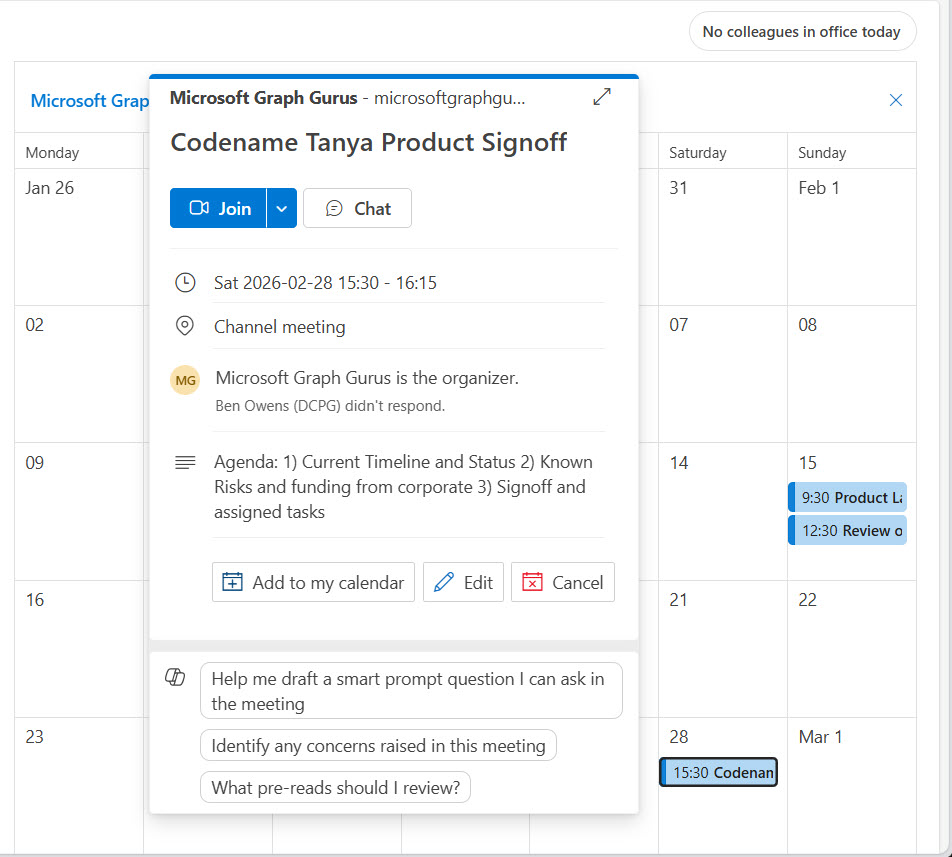
Figure 1 shows the newly created event as viewed through an OWA calendar. The group name is shown as the organizer and the subject, start and send date, and agenda show up as expected.
Channel meetings rely on events being populated with channel identity information. This information has two properties: the identifiers for the team (group) and channel. If you add these properties to the event, the cmdlet fails with a deserialization error. These errors usually occur when an unrecognized or malformed property is used as input for an API request.
Bringing the Meeting to the Attention of Channel Members
Without channel information populated in the event properties, the channel calendar app can’t display any trace of the new event. However, any group member can see the event if they care to look into the group calendar. Realistically, it’s unlikely that many will be as careful about checking events in group calendars (because there are so many), so something needs to be done to highlight the new event. Some other mechanism is needed to let people know about the meeting.
One workaround is to post a conversation into the channel where you want the meeting to appear and include the deeplink for the meeting in the body of the message. The deeplink is the pointer to the online space used by Teams to host the meeting. By giving the message a high priority, there’s more of a likelihood that people will notice. This code illustrates how to extract the meeting deeplink from the event body (the content users see when they receive the meeting notification) and incorporate the deeplink with some additional HTML-formatted text to create the message content.
When the content is ready, the code runs the New-MgChannelMessage cmdlet to post the message to the target channel.
# Extract meeting details from the event
$StartTime = Get-Date $NewEvent.Start.DateTime -format "dd-MMM-yyyy HH:mm"
$EndTime = Get-Date $NewEvent.End.DateTime -format "dd-MMM-yyyy HH:mm"
$HtmlBodyContent = $NewEvent.Body.content

# Extract Teams meeting URL using regex
$Pattern = 'https://teams\.microsoft\.com/meet/[^\s"<]+'
If ($HtmlBodyContent -match $Pattern) {
    $TeamsJoinUrl = $Matches[0]
} Else {
    $TeamsJoinURL = "Unknown Teams meeting link – contact organizer for details"
}
# Identify target channel
$ChannelId = Get-MgTeamChannel -TeamId $GroupId -Filter "DisplayName eq 'General'" | Select-Object -ExpandProperty Id

# Create HTML body for channel message
$htmltext = @"
<div><b><u>All</b></u>channel members are expected to attend.<br/>
<a href="$TeamsJoinURL">Join the online Teams meeting</a></div>
<p>Starting at <b>$StartTime</b> until <b>$EndTime</b></p>
"@

# Post channel message
$Message = (New-MgTeamChannelMessage -TeamId $GroupId -ChannelId $ChannelId -Body @{Content = $htmltext; ContentType = "html"} -Subject "Important Meeting About Project Tanya" -Importance "High")
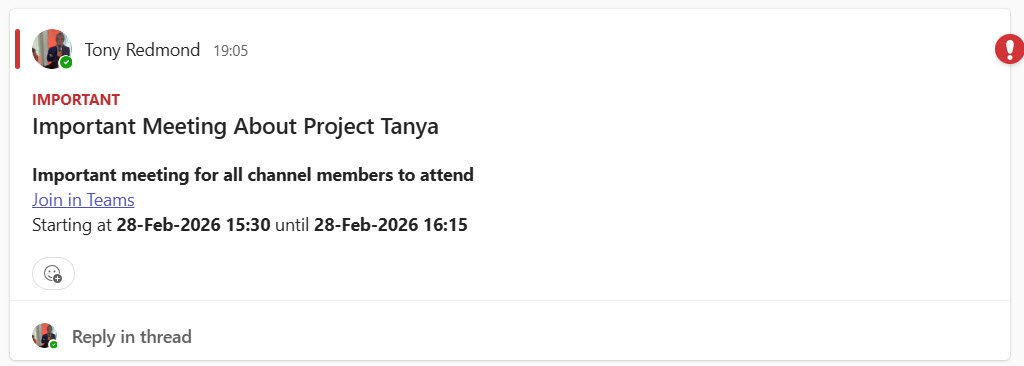
Figure 2 shows what the message looks like when posted in a channel.
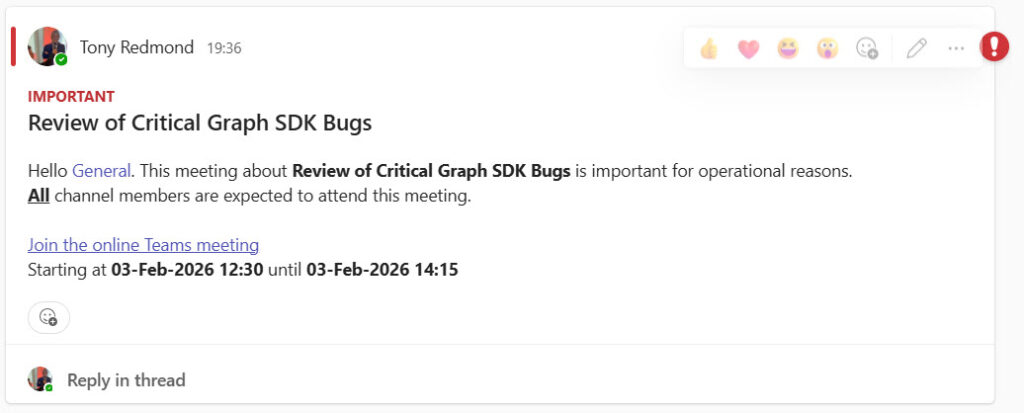
The HTML text for the message can be enhanced to increase the impact of the communication. For example, by adding a channel mention, the message will show up in the activity feed of channel members. Figure 3 shows the effect of incorporating the channel mention in the notification.
You can download a script from GitHub that includes the code to add a channel mention to a message. In addition, the script is parameterized so it can be used to create and advertise a meeting for any channel.

No API Joy
I set out to find out if a Graph API is available to create channel meetings. It seems like an API is unavailable, so we’ve got to make the best of what is possible. Currently, that seems to include creating an online meeting in the calendar of the host group together with some way to let channel members know about the meeting. Maybe things will change in the future. At least, I hope so.