

Limited API Designed to Patch Hole in EWS Migration Story
Microsoft launched the Exchange Admin API on November 17. The API is a plaster to cover up some of the obvious gaps in functionality that exist between what developers can do in Exchange Web Services (EWS) and what can be done using Graph APIs. Microsoft is due to retire EWS from Exchange Online in October 2026, so there’s not a lot of time available for developers to migrate their EWS code to a supported platform. The Exchange Admin API exists to assist in that effort.
The intention is that apps like email clients that are migrating their code base from EWS will use the Exchange Admin API to migrate code by using a wrapper to execute Exchange PowerShell cmdlets to recreate functionality that is often used in EWS. The cmdlets return data that the apps can use in their processing.
As we’ll discover, the Exchange Admin API is very limited and things that you might assume are possible cannot be achieved in many cases. This is by design. Microsoft did not set out to build a new REST-based API for general-purpose Exchange Online administration. Instead, the Exchange Admin API offers just enough support to allow developers to migrate apps off EWS in the limited circumstances when a Graph API is unavailable.
In most cases, the right choice to build administrative automation for Exchange Online is PowerShell using a mixture of cmdlets from the Exchange Online module and the Microsoft Graph PowerShell SDK. I can’t think of a reason why anyone writing a PowerShell script will consider using the Exchange Admin API for a very simple reason: the script can run the cmdlets supported by the API natively. Even better, running the cmdlets natively is more functional and powerful than running cmdlets through the Exchange Admin API.
However, it’s interesting to understand how things work, and if you’ve worked with the Microsoft Graph through PowerShell, most of what needs to be done will be familiar territory. Let’s see how to interact with Exchange through the Exchange Admin API.

Selecting an App to Interact with the Exchange Admin API
Apps and service principals provide the foundation for app-centric authorization and authentication in Entra ID. Developers who use the Exchange Admin API will have their own app. To mimic the situation in PowerShell, the first step is to create a registered app (or reuse an existing app). A new app can be created through the Entra admin center or by running the New-MgApplication cmdlet. The app serves as the identity to interact with Exchange Online via the API. As we’ll see, the app’s service principal must be assigned an Exchange Online permission and one or more Exchange Online roles to allow the app to run cmdlets via the API.
After you know which app to use, grant consent to the app to use the Exchange.ManageAsAppV2 application permission from the Office 365 Exchange Online app (Figure 1). The process to assign the permission is the same as used to assign consent for an app to use a Graph permission. What’s different is the source resource, which is Office 365 Exchange Online.
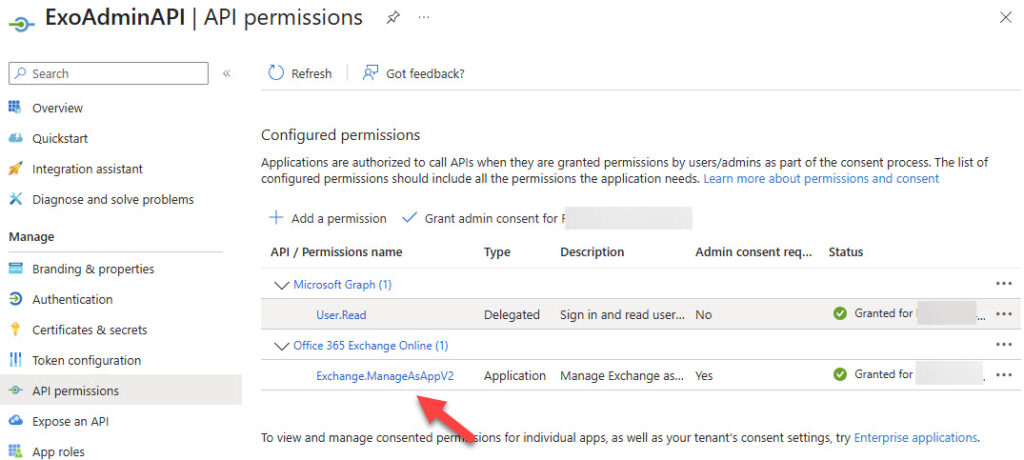
In addition, load an X.509 certificate (a self-signed certificate is fine) into the app. We’ll use the certificate to authenticate with Entra ID and obtain an access token to allow PowerShell to use the Exchange Admin API.
Assign Exchange Online RBAC Roles to the App
The next step is to make sure that the app has the correct Exchange Online administrative roles to allow the app to function as if it was a human administrator. To begin, run the Connect-MgGraph cmdlet to create an interactive Graph session and fetch details of the app’s service principal:
Connect-MgGraph -scopes Application.ReadWrite.All -NoWelcome
$ExoAdminSP = Get-MgServicePrincipal -Filter "displayname eq 'ExoAdminAPI'"
$ExoAdminSP

DisplayName Id                                   AppId                                SignInAudience ServicePrincipalType
----------- --                                   -----                                -------------- --------------------
ExoAdminAPI 1c0cf40b-2c6c-4030-a0c3-70284bedf5b7 0559c362-c681-4108-86ff-d7c006643a9d AzureADMyOrg   Application
Entra ID service principals don’t exist in Exchange Online. To create a link between Entra ID and Exchange Online, connect to Exchange Online to create an Exchange service principal for the Entra ID service principal. Here are the commands:
Connect-ExchangeOnline -ShowBanner:$False -ErrorAction Stop

New-ServicePrincipal -Appid $ExoAdminSP.AppId -ServiceId $ExoAdminSP.Id -DisplayName 'Exo Admin API App'

DisplayName                              ObjectId                                                             AppId
-----------                              --------                                                             -----
Exo Admin API App                        1c0cf40b-2c6c-4030-a0c3-70284bedf5b7                                 0559c362-c681-4108-86ff-d7c006643a9d
Linking the two types of service principals is the same mechanism as used in RBAC for Applications to control app access to mailboxes. We’ll use the Exchange service principal to assign the necessary Exchange RBAC roles. To make the next step easier, populate a variable with the details of the new Exchange service principal:
$ExoAdminSPExo = Get-ServicePrincipal -Identity 'Exo Admin API App'
Now use the Exchange service principal to add the app to the View-Only Organization Management and Recipient Management role groups. The first role group allows access to the organization and domains endpoints. The second role group takes care of the other four endpoints:
Update-RoleGroupMember -Identity "View-Only Organization Management" -Members @{Add="$ExoAdminSPEXO"}

Confirm
Are you sure you want to perform this action?
Updating the role group Identity:"View-Only Organization Management" with the member list "Add=1c0cf40b-2c6c-4030-a0c3-70284bedf5b7;".
[Y] Yes  [A] Yes to All  [N] No  [L] No to All  [S] Suspend  [?] Help (default is "Y"): y

Update-RoleGroupMember -Identity "Recipient Management" -Members @{Add="$ExoAdminSPEXO"}

Confirm
Are you sure you want to perform this action?
Updating the role group Identity:"Recipient Management" with the member list "Add=1c0cf40b-2c6c-4030-a0c3-70284bedf5b7;".
[Y] Yes  [A] Yes to All  [N] No  [L] No to All  [S] Suspend  [?] Help (default is "Y"): y
Securing an Access Token
With the app correctly permissioned, we proceed to authentication. Details of how to authenticate the app with Exchange Online is covered in this documentation. The basic idea is to obtain an access token from Entra ID that the app can use to prove its right to run the Exchange Admin API.
The PSMSALNet module is a convenient way to obtain an access token from Entra ID (be sure to read the module documentation). Several parameter values are required, including the application identifier of the Office 365 Exchange Online service principal, which we get with:
Get-MgServicePrincipal -filter "displayName eq 'Office 365 Exchange Online'" | Format-Table DisplayName, AppId

DisplayName                AppId
-----------                -----
Office 365 Exchange Online 00000002-0000-0ff1-ce00-000000000000
The other parameters are the tenant identifier, the certificate that’s been uploaded to the app, and the app identifier. In this example, I use the thumbprint of the certificate to fetch its details. The parameters are placed into a hash table and used by the Get-EntraToken cmdlet to obtain an access token.
$Thumbprint = '0CF6CE3F3548FD73E7AC8CF20226ED447E125C71'
$AppId =  (Get-MgServicePrincipal -filter "displayName eq 'ExoAdminAPI'").AppId
$TenantId = (Get-MgOrganization).Id
$Certificate = Get-Item ("Cert:\CurrentUser\My\"+$Thumbprint)
$Parameters = @{}
$Parameters.Add("TenantId",$TenantId)
$Parameters.Add("ClientId",$AppId)
$Parameters.Add("CustomResource",'00000002-0000-0ff1-ce00-000000000000')
$Parameters.Add("ClientCertificate", $Certificate)
$Parameters.Add("Resource", "Custom")

$Token = Get-EntraToken -ClientCredentialFlowWithCertificate @Parameters
The PSMSALNet module suffers from an assembly clash with the Exchange Online module. To avoid the issue, run Connect-MgGraph first in a new PowerShell session, and then run Get-EntraToken. You’ll know if the problem happens if you see something like this:
Get-EntraToken: The ‘Get-EntraToken’ command was found in the module ‘PSMSALNet’, but the module could not be loaded due to the following error: [Could not load file or assembly ‘Microsoft.Identity.Client, Version=4.66.1.0, Culture=neutral, PublicKeyToken=0a613f4dd989e8ae’. Assembly with same name is already loaded]

Accessing the Exchange Online Organization Configuration
With an access token, we can use the Exchange Admin API. This example shows how to run the Get-OrganizationConfig cmdlet to retrieve details of the tenant configuration. The basics of the API are revealed. Requests are posted to the target endpoint to retrieve information. Each request contains a JSON-format body with details of the information the app wants from Exchange. It’s up to the app to do whatever it wants with the information that it receives from Exchange.
$Headers = @{"Authorization" = "Bearer "+ $Token.AccessToken}
$ContentType = "application/json"
$URI = ("https://outlook.office365.com/adminapi/v2.0/{0}/OrganizationConfig" -f $TenantId)

$Body = @"
{
    "CmdletInput": {
        "CmdletName": "Get-OrganizationConfig"
    }
}
"@

$ExoResult = (Invoke-RestMethod -URI $Uri -Headers $Headers -Method "POST" -Body $Body -ContentType $ContentType).Value
If ($ExoResult) {
   Write-Host (“The tenant identity is {0} and its SharePoint root is {1}” -f $ExoResult.Identity, $ExoResult.SharePointURL)
}

The tenant identity is Office365itpros.onmicrosoft.com and its SharePoint root is https://office365itpros.sharepoint.com/
Fetching Mailboxes
For recipient management, an “anchor mailbox” is required to tell Exchange Online which server should handle the request. The mailbox endpoint is quite limited and only supports a couple of operations for the Get-Mailbox and Set-Mailbox cmdlets (why Get-ExoMailbox is not used is unknown).
$XAnchorMailbox = "Lotte.Vetler@office365itpros.com"
$Headers = @{"Authorization" = "Bearer "+ $Token.AccessToken;"X-AnchorMailbox" = "UPN:$XAnchorMailbox"}
$ContentType = "application/json"
$URI = ("https://outlook.office365.com/adminapi/v2.0/{0}/Mailbox" -f $TenantId)
$Body = @"
{
  "CmdletInput": {
    "CmdletName": "Get-Mailbox",
    "Parameters": {
      "ResultSize": "Unlimited"
    }
  }
}
"@
[array]$Mailboxes = (Invoke-RestMethod -URI $Uri -Headers $Headers -Method "POST" -Body $Body -ContentType $ContentType).Value
If ($Mailboxes) {
  Write-Host ("{0} mailboxes fetched…" -f $Mailboxes.count)
}
Before you get too excited about this endpoint, read the documentation. The lack of functionality is immediately available, but the biggest issue is no support for server-side filtering. I can’t understand why Microsoft left filtering out, especially when the documentation covers the topic of pagination and property selection when retrieving multiple items.
For example, the code above fetches all mailboxes. The result could be 50 mailboxes, but it might be 50,000. Not being able to use server-side filtering means that, to find the set of shared mailboxes, an app must ask for all mailboxes and then apply a client-side filter to extract the relevant set. This is pure folly and is a great example of code that works splendidly in a test environment that’s utterly useless in production. I guess Microsoft never tried to use the mailbox endpoint in their own environment.
A Small but Important Part in the EWS Migration Story
There’s no point in showing how to use the other endpoints supported by the Exchange Admin API. Everything works in the same limited way. If you’re looking for more details, MVP Vasil Michev has an interesting perspective on how the API functions.
Microsoft documentation is available online for those who need to upgrade their code to move away from EWS before the hatchet descends in ten months’ time. In that light, the Exchange Admin API is a useful tool to help finish code migrations. Anyone else who might think that an Exchange Admin API is the way to automate Exchange operations will be sadly disappointed.