

Use Single Value Extended Property to Filter Against Item Size
The question of how to find large items in a mailbox used to be far more common than it is today. Despite the ever-swelling size of messages, the advent of the 100 GB mailbox default quota made it unnecessary to worry about finding and removing large messages to free up space. Things were different when Exchange 4.0 launched with 50 MB mailbox quotas!
In any case, the subject came up again in a comment about my article explaining how to find and remove items from a mailbox with the Microsoft Graph PowerShell SDK. The article explains how to use filters to find messages, but the filters don’t include item size, such as finding all items greater than 10 MB. Hence the question.

Accessing Outlook MAPI Properties
We’re dealing with the Graph, so we need a method to access the item size. As it happens, item size is an old Messaging Application Programming Interface (MAPI) property used by Outlook classic and Exchange Server (including Exchange Online), The Graph maps the old MAPI properties through the legacy extended property resource type and methods are available to list and create single and multiple value properties. Item size is a single value extended property.
Some examples of getting a single value extended property are in the mailbox contents report script (reports the item size) and the Copilot interactions report script (to check when a compliance record is associated with Copilot). However, these examples show how to retrieve data from single value extended properties rather than filter against the properties.
Server and Client-Side Filtering
I’ve often written about the performance difference between server-side and client-side filtering. The golden rule is to always use server-side filtering when possible. In this case we know from previous examples how to retrieve the item sizes, so it’s a lot easier to construct a client-side filter based on existing code.
However, we still want reasonable performance. Fetching all the items from a mailbox to apply a client-side filter works nicely when the mailbox holds a small number of items. Performance degrades horribly as the item count mounts – and the current size of mailboxes means that code is likely to run against some mailboxes with monster item counts. To assure that we won’t have to wait for too long, we can combine a server-side filter to limit the number of items fetched from the server before applying a client-side filter to find the final set.
This example uses a server-side filter to find items in the Inbox that have attachments and have been received in the last 30 days. It’s likely that very large items have attachments and restricting the date range is a good way of restricting the number of items to be fetched, as is processing items from only one folder. Here’s the code to retrieve items using the filter and then check each item to see if its size exceeds the threshold.
$SizePropId = "Integer 0x0e08"
# Size threshold
$Threshold = 0.5MB
# Date range (example: last 30 days)
$Since = (Get-Date).AddDays(-30).ToString('s') + "Z"

# Target mailbox
$User = Get-MgUser -UserId 'Lotte.Vetler@office365itpros.com'

# Server-side filter - find messages with attachments received since the date in $since
$Filter = "hasAttachments eq true and receivedDateTime ge $Since"

[array]$Messages = Get-MgUserMailFolderMessage -UserId $User.Id -MailFolderId 'Inbox' `
    -Filter $Filter -All -PageSize 500 -Select id,subject,sender,receivedDateTime `
    -ExpandProperty "singleValueExtendedProperties(`$filter=id eq '$SizePropId')"

$Report = [System.Collections.Generic.List[Object]]::new()
# Client-side size check
$Messages | ForEach-Object {
    $Size = [int64]$_.SingleValueExtendedProperties[0].Value
    If ($Size -gt $Threshold) {
        $ReportLine = [PSCustomObject][Ordered]@{
            Subject          = $_.Subject
            From             = $_.Sender.EmailAddress.Address
            ReceivedDateTime = $_.ReceivedDateTime
            SizeMB           = [math]::Round($size / 1MB, 2)
            Id               = $_.Id
        }
        $Report.Add($ReportLine)
    }
}

$Report | Sort-Object SizeMB -Descending | Out-GridView -Title "Large Emails in Inbox over $($Threshold / 1MB) MB"
The code works but will be slow when run against a busy Inbox that receives many large messages. A server-side filter is needed to assure reasonable performance. The difficulty is figuring out the syntax to filter against the correct single value extended property. The previous examples of retrieving values help, and the magic comes from making sure that the types of the value and variable being compared are compatible. The variable holding the size to compare against ($Threshold) is an integer value, so the filter uses a cast to ensure that the value held in the property is considered an integer value to allow the filter to work.
Here’s the amended code:
Try {
    [array]$LargeItems = Get-MgUserMailFolderMessage -UserId $User.Id -MailFolderId Inbox -All -PageSize 500 -Property Sender,ReceivedDateTime,BodyPreview,Subject,ToRecipients `
     -Filter "(hasattachments eq true and receivedDateTime ge $since) AND singleValueExtendedProperties/any(ep:ep/id eq 'Integer 0x0E08' and cast(ep/value, 'Edm.Int32') gt $Threshold)" -expand "singleValueExtendedProperties(`$filter=(id eq 'Integer 0x0e08'))" -ErrorAction Stop
} Catch {
    Write-Host "Error retrieving mailbox items for $User.DisplayName. $_" -ForegroundColor Red
    Break
}
The result is much better performance than the client-side filter can deliver, especially for looking through large quantities of items. You can download a script to run mailbox searches from the Office 365 for IT Pros GitHub repository.
Other Ways to Find Large Mailbox Items
Scripting a solution with the Microsoft Graph PowerShell SDK is not the only way to find mailbox items greater than a certain size. The same can be done with a content search (Figure 1).
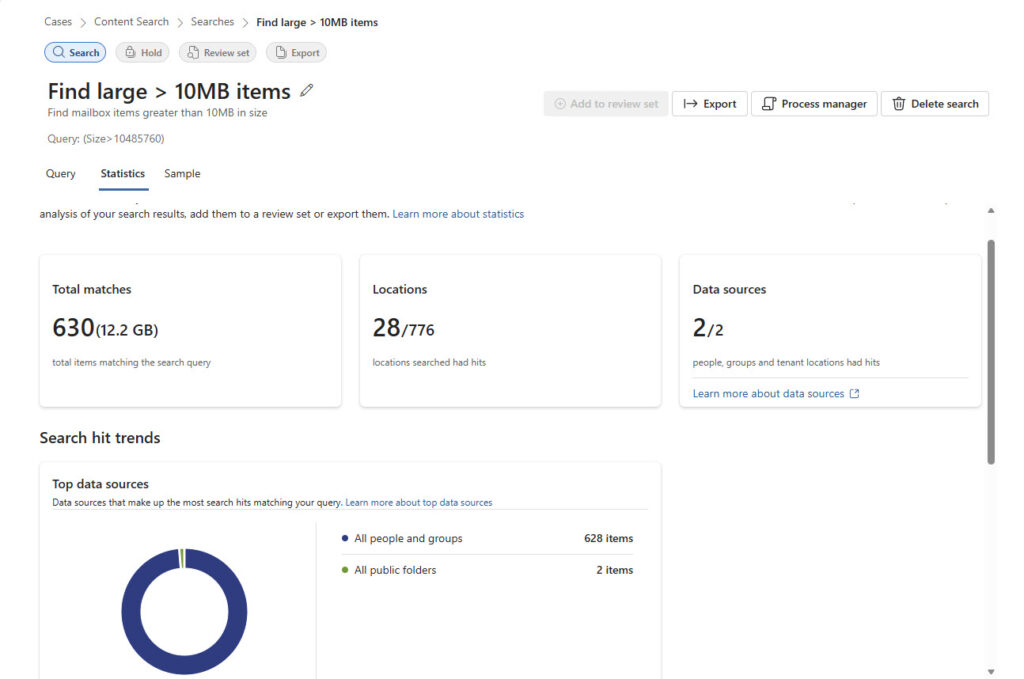
Alternatively, if you have E5 licenses and want to remove the large items, with Purview Priority Cleanup. In both cases, a KeyQL query against the size property does the trick. You can then export the search report to get a list of the large items. PowerShell is more flexible and faster than these no-code Microsoft 365 Search solutions, but if all you want is a list of large items, they do the job.




@Tony: Thank you very much for the solution. Much appreciated.