

Role Groups Based on an Exchange Foundation
The reasons why Microsoft Purview has its own set of role groups and role assignments is mired in Exchange history, specifically in the introduction of Role Based Access Control in Exchange 2010. This happened at the same time as Microsoft introduced its first generation of compliance offerings like retention policies and eDiscovery, so it was natural to extend Exchange RBAC to support the compliance functionality.
As time passed, the compliance solutions moved away from a single workload focus and developed a more all-encompassing mode, first for Office 365 and then for Microsoft 365. Microsoft Purview evolved from the old Exchange-based Security and Compliance center to develop solutions like information protection, data lifecycle management, and communications compliance, but the method used to govern access to individual Purview solutions or to discriminate levels of access with Purview solutions remain rooted in Exchange RBAC.
Thus, the PowerShell cmdlets used to manage Purview solutions are found in the security and compliance module, which is a sub-module of the Exchange Online management module. Indeed, some cmdlets appear in both, like the Get-RoleGroup and Get-RoleGroupMember cmdlets, both of which are important to this story. Microsoft has never devoted the engineering effort to build a standalone Purview PowerShell module, and that’s why to get to the compliance cmdlets, you must first run Connect-ExchangeOnline to create an Exchange session and then Connect-IPPSSession to connect to the security and compliance endpoint.

Understanding Why Things Work Like They Do
Why is any of that important? Well, if you understand the background of why things work the way that they do, you can appreciate why seams appear in functionality, just like some of the issues explored in the rest of this story.
But first, let’s consider the ask. When working with Purview solutions, like Priority Cleanup, it’s common to discover that users must be members of specific Purview role groups before they can perform some function. A role group is a collection of roles, each of which grants users the ability to do something. For example, you must be a member of the eDiscovery Manager role group to manage eDiscovery cases. This requirement also extends to applications before they can interact with eDiscovery cases programmatically.
Distinguishing between Purview role groups and Entra ID role groups can also be difficult. If an account is an Entra ID global administrator, shouldn’t they be able to do everything to manage Purview? Well, no, the account must be a member of the Organization Management role group to achieve that status.
Some Purview Role Group Members Don’t Exist
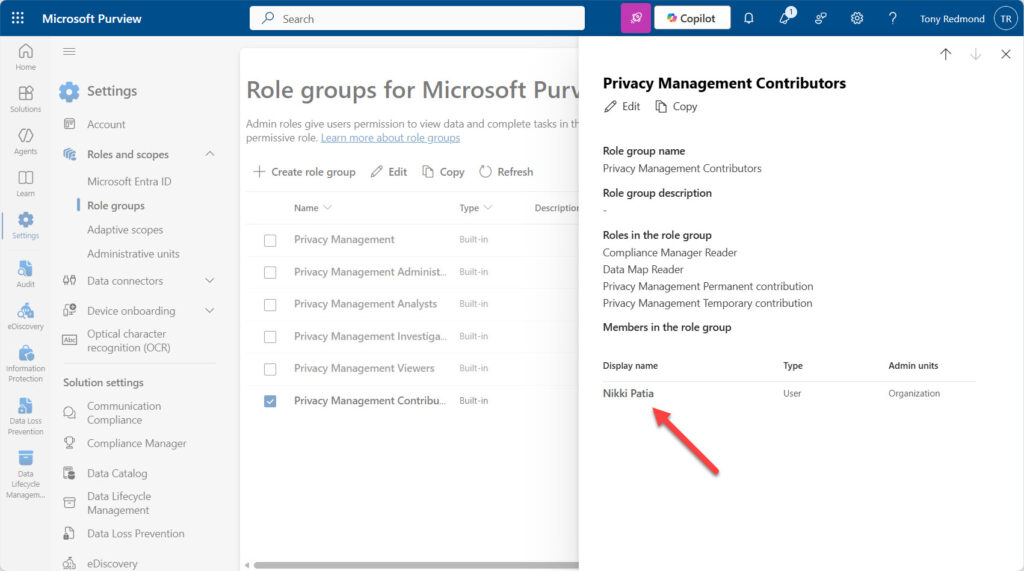
Understanding what Purview role groups are in active use and what user accounts and service principals (apps) are members of role groups is therefore a good thing. And while you can peruse role group membership through the Purview portal, the problem is that role membership shown in the portal can be incorrect. For example, the user Nikki Patia shown as a member of the Privacy Management Contributors role group in Figure 1 does not exist in the tenant.
An example of a long-departed service principal that I found in the membership of a role group is called Foreign Principal for ‘Research in Motion’ in an RBAC role group called MailboxAdmins that includes no roles. As far as I can tell, these are artifacts of a long-gone Blackberry integration with Exchange Online.
Why does these lingering non-existent objects persist? Purview largely depends on the Exchange Online Directory Store for its information about user accounts (which is why the Get-RoleGroupMember cmdlet runs, it reports that all members are of the “MailUser” type). Exchange Online and Entra ID share a dual-write mechanism to ensure that changes made to either directory are written into both at the same time. This mechanism does not extend to Purview, which means that over time deleted accounts and deleted service principals can continue as role group members until an administrator removes the ghost entries.
Scripting a Purview Role Group Report
My Purview Role Group Report script uses cmdlets from Exchange Online, the security and compliance endpoint, and the Microsoft Graph PowerShell SDK. The latter might seem strange, but I wanted to resolve the information reported by Purview against Entra ID to identify bad objects, and to distinguish service principals between straightforward apps and managed identities. Checking Entra ID can only be done by using Graph SDK cmdlets.
You can download the script from GitHub. As you review the code, you’ll see this flow:
- Connect to the Microsoft Graph with the required scopes, then connect to Exchange Online and the security and compliance endpoint. The order of connections is important to avoid assembly clashes.
- Run the Get-RoleGroup cmdlet to find the role groups in the tenant. My tenant reported 77 groups.
- For each role group, find the current membership and distinguish between the different types of Entra ID objects that can be members. This is where objects that don’t exist in Entra ID are highlighted.
- Update a PowerShell list with details of each role assignment (at member level) to allow this information to be reported later.
- Update a PowerShell list with details of each role group and its membership.
- Find the set of unique identifiers that hold role assignments. The identifiers can represent users or service principals.
- For each unique identifier, figure out details of the object (for users, we want to report details like their department and country).
- Sort the user assignment information by object type and then by object name to make it easier to report.
- Generate a HTML report including details of each active role group and its membership. There’s no real point in outputting details for unused role groups, so they are not included in the report.
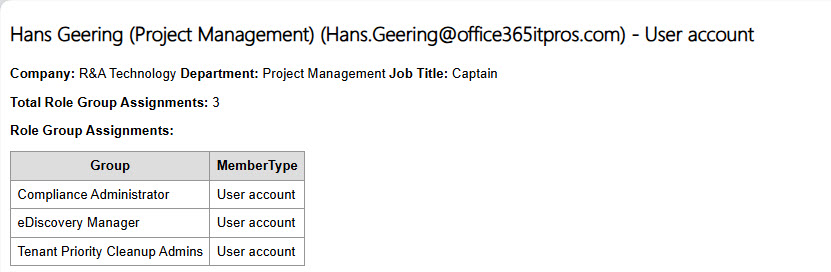
- The second part of the report details users and the role groups that each user belongs to. This information is a nice overview of the areas of Purview individual users can work with.
Figure 2 is an example of how the report presents information about a Purview role group and its membership. You can see that the two service principals are listed as an app and a managed identity.
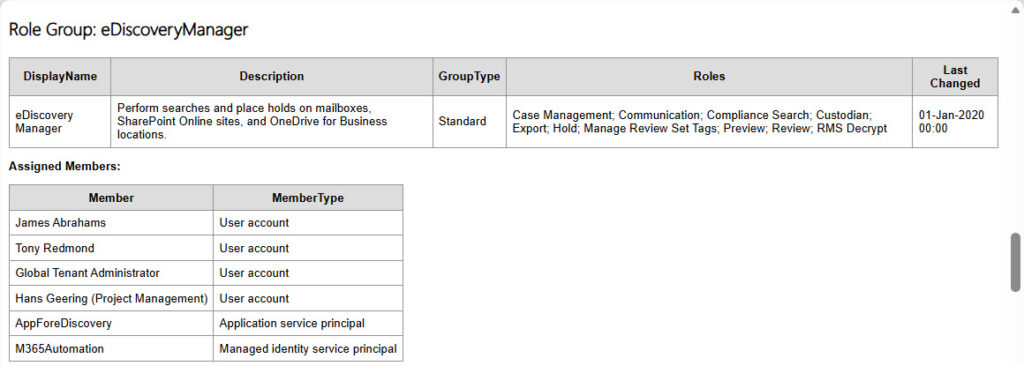
Figure 3 shows the other view included in the report to list the role assignments for individual users.

Classic Approach Works Too
This PowerShell script is an example of combining data from multiple Microsoft 365 sources to enrich and expand the information that a report can present. The classic approach of using Get-RoleGroup to fetch all role groups and extracting the membership from each with Get-RoleGroupMember works, but it doesn’t allow you to detect invalid objects, distinguish between different types of objects, and report the information in two views.
I’m sure that others have their own approach tailored to meet the unique business requirements of their organization. I suggest that the framework outlined above is a good foundation for anyone wanting to report Purview role groups and memberships while customizing the code to meet their needs. Have fun and share your work with the community through the article comments if you come up with a good customization.