

Transport rules have been a feature of Exchange Server since the 2007 version and have been included in Exchange Server 2013 with a number of improvements.
New Features in Exchange 2013 Transport Rules
Microsoft has published a list of changes and improvements to transport rules on this TechNet page.
Support for data loss prevention policies is one of the major new features in Exchange Server 2013, and this integrates with transport rules.
Exchange 2013 also has a number of new predicates (conditions) and actions for transport rules. A few of the highlights are:
- Ability to take action on messages that have been sent from specific IP address ranges
- Ability to take action on messages that have attachments with specific extensions, or that contain executable content
- Ability to stop subsequent rules from processing a message (this will make the order of rules important for some environments)
- Ability to generate incident reports to an email address at varying severity levels
- Transport rule information is now included in message tracking logs
- Rule monitoring to detect and alert on rules that are delaying email delivery

Managing Transport Rules
Transport rules in Exchange Server 2013 can be managed in two ways. The first is by using the Exchange Management Shell cmdlets:
[PS] C:\>get-command -Noun *TransportRule*

CommandType     Name
-----------     ----
Function        Disable-TransportRule
Function        Enable-TransportRule
Function        Export-TransportRuleCollection
Function        Get-TransportRule
Function        Get-TransportRuleAction
Function        Get-TransportRulePredicate
Function        Import-TransportRuleCollection
Function        New-TransportRule
Function        Remove-TransportRule
Function        Set-TransportRule
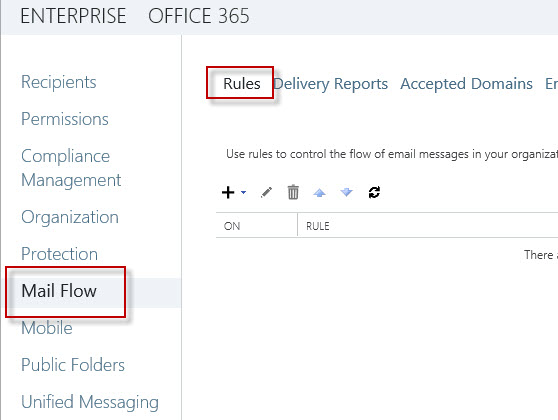
The second is by using the Exchange Administration Center, in the Mail Flow section under Rules.
Creating New Transport Rules
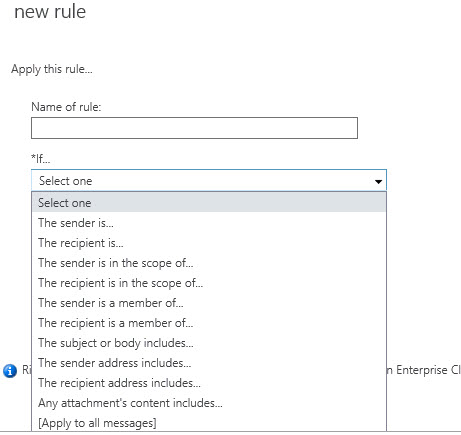
The New Rule wizard behaves in an interesting way in Exchange Server 2013. If you simply click the + button the New Rule wizard begins and exposes a limited subset of the available conditions and actions in the drop down lists.
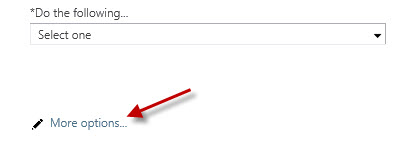
However, there is also a More options link in the wizard start screen.
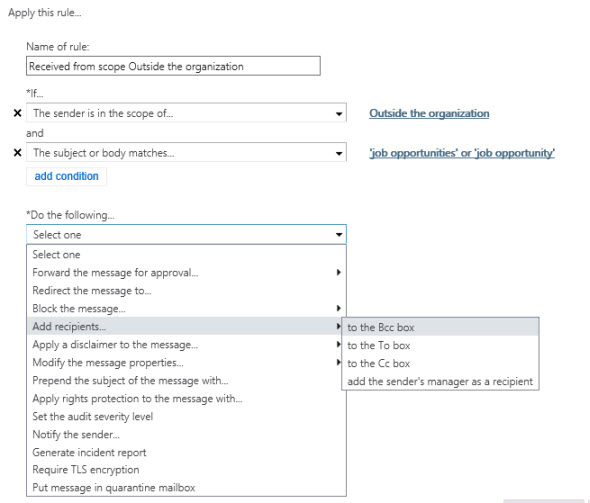
Clicking that link expands the options available in the wizard to a much more granular set, as well as the ability to set multiple conditions and actions.
Creating New Transport Rules Based on Templates
In addition to the New Rule wizard behavior shown above you can also create a new rule based on a template of sorts. By clicking the little arrow next to the + icon a menu of common rule types is presented to get you started.
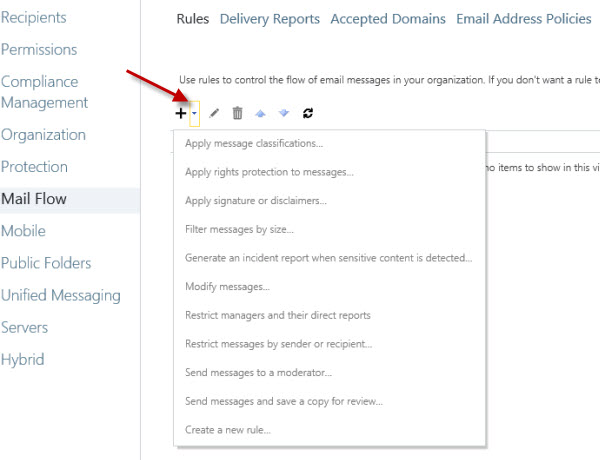
For example, choosing the “Apply signature or disclaimers” option from the list the new rule starts with the “Append a disclaimer to the message” action already selected.
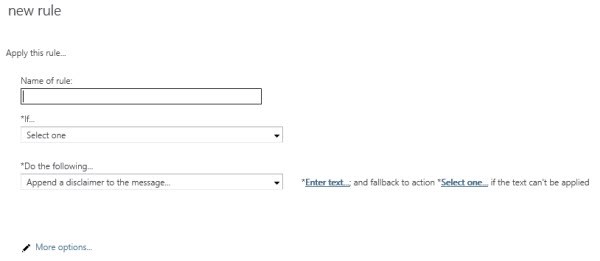
Other templates present different subsets of actions depending on the general purpose that the rule is for. However in all cases it appears you can still click More options to get access to all of the conditions and actions if needed.

Time-Based Transport Rules
Another useful capability of Exchange 2013 transport rules is the ability to set specific dates for the rule to be activated and deactivated.

This could be useful for businesses that need to align their disclaimers with specific events such as a marketing campaign, a holiday period, or corporate merger/acquisition.
Transport Rules Audit Mode
Exchange 2013 transport rules also have an audit mode so that they can be tested without impacting message delivery. In the New Rule wizard these options are visible as the two “Test rule…” modes.
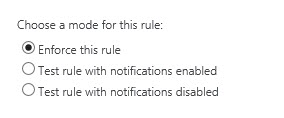
Although they are referred to as “Test” in the Exchange Admin Center the modes are referred to as “Audit” in the New-TransportRule cmdlet parameters.
So in effect a rule can be placed in one of three modes:
- Enforce – the rule is active and all the actions you have specified will be taken
- Audit (Test rule with notifications disabled) – the rule is active, and the actions are logged to the message tracking logs, but not actually enforced on the message
- Audit and Notify (Test rule with notifications enabled) – same as Audit mode except any “Notify…” actions on the rule are taken
Summary
As you can see a number of improvements have been made to transport rules in Exchange Server 2013 that add more power and flexibility to this feature, which will no doubt help many organizations who rely on transport rules today or who have specific needs that aren’t quite met by the transport rules functionality in previous versions of Exchange.




Ho to find who has deleted the transport rule using search-adminauditlogs cmd
Exchange 2016 CU6: When transport rules send a rule violation report, is there any way to tell it what account to use?
Hi Paul
Old post I know, but do you know of any way to increase the amount of text that can be prepended to the subject line? Currently (Exchange 2016 CU2) it is limited to 32 characters and we have a requirement to go a bit beyond this for email classifications.
We need a rule on Exchange2013 that auto-BCCs A when a mail is sent by another user, e.g. B, on behalf of A.
How to detect such a mail? In a mail sent “on behalf of”, sender will still be B. What condition applies to mail sent by “B on behalf of A”, so I can detect it and apply the rule?
Sorry if this seems a stupid question, I am not an Exchange admin myself but need to talk our admin into implementing such a rule.
I want to remove the attached file *.Dcos , which is coming from external IDs in my organization. Please suggest me
I suggest you create a transport rule (or mail flow rule as they’re now called).
I am setting up a mailbox that will receive emails where the message body contains data that I want to capture in a database.
What I want to accomplish is call my custom transport rule / API built in .NET (C#, VB.NET) and pass the body of the email so it can be parsed and stored in my database. Any email that arrives in this inbox will be processed this way.
I would be grateful for any direction that can be provided to point me in the right direction to create a custom mail transport rule and connecting the rule to my API.
I have no idea if that is even possible. It’s outside of my areas of expertise. You might need to ask on the Exchange developer forums on TechNet.
we are looking for the solution for the departed users. We will add the departed users in the group. we will create transport rule and mention if the email address exist in the grouop we need to send auto reply and accept the sender email. we did not find any option to do this
Do you know of any Transport Rule limitations for Exchange 2013? Specifically how big one rule can be? I found an MS article that Exchange online can only be 4kb in size, thus limiting to 4096 characters. But I can’t find any documentation for Exchange 2013.
is it passible to change disclaimer size limit in exchange
On occasion, we have users who send out an email with a large attachment to a large number of contacts (250-300). When this happens, our exchange craws.
Is there anyway to do a rule where if the email has a large size and large recipients, it will be delayed until the evening time, when the exchange server will not be so busy.
No.
Dear Paul,
Can we in someway save the rejected message that is a bulk email for example and make Exchange 2013 send it automatically once the transport rule is turned off ?
Thanks in advance.
I don’t really understand what you’re trying to achieve but I suspect the answer is no.
Dear Paul,
I have a simple question.
We added a disclaimer on our Exchange 2013 server.
How can we proof that we have send our disclaimer?
The customer could lie and say: sorry, I didn’t received your disclaimer.
Since the disclaimer does not show up in the send items of the employee I must have some kind of proof that the mail did had our disclaimer added by the server.
Friendly regards,
Pascal
Use journaling.
But email disclaimers hold absolutely zero legal weight in any country I’ve ever looked at. All they really are is something to make people feel better.
hi ..
plz could you tell me if i can send email to all organization and exclude specific nested group from receiving it ??
Hi Paul,
Is there any possibility in exchange 2013 Transport rule to keep a BCC copy to the sender manager when ever the Domain users are sending mail to External.
Hi Paul,
I have been trying to create a rule that would monitor the Reply-To header and if it matches a specific email address remove the Reply-To header. It seems the way to do this would be to use the “Remove this Header” action and setting it to Reply-To. However it is not removing it.
I know the rule is processing because I added an action to modify the subject and that is occurring.
Is it possible to remove the Reply-To header or is there any sort of list that explains what headers can be removed?
Thanks
Hi Paul,
My query here is about out of office reply issue. We are having exchange 2013 and outlook 2010. We are setting out of office message to only inside my organization and outside of organization is off. But still outside of organization users are getting out of office message..
Noe sure why out of office message is going to external users..any suggestion for this?
Hi,
we’re using Exchange 2013.
I’ve been trying to google this for a while and couldn’t find a solution.
I Created a RULE for one of our users, that “FORWARDS Message for APPROVAL” to his Manager, when the recipient is “OUTSIDE The Organization”.
The rule works FINE, and the email is delivered to the recipient only after the Manager ACCEPTS.
The thing is, There seems to be a TIMEOUT for the approval request, and the message is automatically Rejected if the Manager DIDN’T Respond in the first 2-3 Hours.
( we encountered this because the manager was on a Flight for 5 hours, and wasn’t able to Respond, not to mention that Iphone users cannot ACCEPT these requests )
I Simply CANNOT Find any solution or Article that explains how to CHANGE this Auto-Rejection TIME FRAME to a different value.
I’d appreciate is someone can help me out here… this is destroying the innocence of my soul. 😉
Thanks in advance,
Dor
Pingback: Redirect Outbound Emails to a New Email Address
Hi Paul,
I am trying to something very close to this article, however, I am confused as to the use of the word ‘group’. Under Apply this rule if… box, it gives me the option of The sender is a member of this group. I would think that I could use an AD group but it appears that Exchange does not look at AD groups for this. Is there any way to do that using the AD groups?
Thanks!
I would like to set a Transport rule to Not request a read receipt for any emails sent to an external domain. Is there a way to do this?
Looks like this article answers your question.
http://blogs.technet.com/b/exchange/archive/2011/02/23/3412028.aspx
I need an auto-responder for a shared mailbox. Anyway I can do that through the transport rules? Right now I have script that disables and enables the autoreplystate every 10 minutes. I am seriously considering buying a third party product for this.
Exchange isn’t designed or intended to be an auto-responder system, so you should look at products or services that specialise in that functionality.
I would like any email with a reply-to address in the return address field has its subjects appended with ‘CAUTION: Reply address is different, could be a hoax’
is this possible?
Not with a transport rule, as far as I know.
Pingback: Which Transport Rule Was Applied to an Email Message
To implement signatures, do you have to have a premium cal?
Is there a way to create a rule that creates delivery receipt and send it to anyone sending from outside the organization. Please help.
Pingback: 5 Underappreciated Things Hosted Exchange Can Do for Your Company | Lunar Pages
In Exchange Server 2013, I want to create mail flow rule so that it can reject the message with explanation as “BCC is not allowed as per company policy”. I found following header in Internet header: X-MS-Exchange-Organization-Recipient-P2-Type: Bcc.
But when I put this in mail flow rule by specifying as below: A message header includes…
‘X-MS-Exchange-Organization-Recipient-P2-Type’ header includes ‘Bcc’
This rule does not apply. Pls help me out.
Hi Pual,
how can i block the attachment on emails to sender and receiver on an specific groups. and can block the external emails unable to send and receive out side the domain or organization. Thanks
I want to NOT ACCEPT any mail sent to me from outside my oganization within a time frame. How can I do this?
Use a time-based transport rule, as mentioned in the article above.
Hi Paul, Thanks for the article.
I have a question. Can we forward all emails to administrator which contain “bcc” ? I know we can do in Ex2007/2010 but I am not able to do for Ex2013. Could you advise me on this? much appreciate your feedback. Thanks
I read one of your article for exchange 2010 ,
https://www.practical365.com/restrict-outbound-email-transport-rule/
someone said that there is a delay of 4 hrs before the rules kick in and the solution was to restart transport services for immediate action. Does it hold true for exchange 2013. Also if have a rule already setup to allow only a certain group to send emails to a particular email address and then I add a user to that group, does it take 4 hrs for that as well?
Paul,
Will transport rules be applied for mails originating from iPhone devices that are linked to the exchange account? We have a rule that will prevent mail from being sent outside the domain. Works on the Outlook client but not from the iPhone iOS. Thanks for any insight.
Yes, if they are using ActiveSync to connect. If they’re using POP or IMAP and some other SMTP server you don’t control then they can send anything they like.
Pingback: Myers Briggs istj
How do you add logo into the disclaimer? I want to create a standard organization signature but with logo, not just text base. Does it allow you to achieve that?
Not natively. There are third party disclaimer tools that will let you do that.
I have done this using html tags in the disclaimer box – <a href="http://www.whateverwebsite.com/logolocation"
I cannot use append for a disclaimer. Why? Always back to prepend. Is related to licensing of Exchange 2013 I’m using Standard Server versión & Cals. Do I need Standard Server & Enterprise Cals?
Pingback: Customized Exchange or Office 365 Disclaimers | ODDYTEE
Hi Paul,
I would like to ask you, how to create a transport rule for rejecting email for distribution group and expect keywords in subject line.
could you please tell me how we can add multiple keywords in above filtering and how to do this shell script
Pingback: Block External Emails for an Exchange Server 2013 Mailbox
Hi paul,
is it possible to create rule for, allowed only outgoing mails not need incoming mails for particular user.
please suggest.
thanks
Yes, here you go:
https://www.practical365.com/block-external-emails-exchange-server-2013-mailbox/
Hi Paul, I am desperate to change the attachment size limit in Exchange 2013. I haven’t found any good step by step instructions, please help. thanks.
There is this page on TechNet:
http://technet.microsoft.com/en-us/library/bb124345(v=exchg.150).aspx
how can i prevent the onbehalf read receipt in exchange 2013
I already responded to you yesterday asking for more info about the problem:
https://www.practical365.com/exchange-server-faq-message-tracking-include-bcc-recipients/#comment-33794
dear
I was installed exchange 2013 in stead of 2003 few days ago from that time Iam facing problem with the read receipt
one is generated from the server and the other upon client request for read report the means anyone send us email he received tow read messages for the email the first is onbehalf the receipt and the other upon the sender request for examaple
from: musheer sheikhali ; on behalf of; musheer sheikhali
from: musheer sheikhali ;
these are 2 read receipt for the same email
Paul, I’m interested in this auditing. What type of reports can be pulled to give details on the transport rules that have been processed? Would like to know what emails went through what rules at what times etc. Also, is this possible for 2010?
How we can add logo to a disclaimer message to all outgoing mail that leaves the Exchange 2013?
Pingback: Getting Started with Exchange Server 2013 « GAPTHEGURU
No matter what happened, he would not say a word.They’re in red and white.Just wait and see!Our school is in the east of Beijing.I want to have a part-time job.Many people complain that computers are taking over their jobs.Many people complain that computers are taking over their jobs.He shot the lion with a gun.Take it easy.Do you have any suggestions for me?
how can we forward emails coming from any specific domain in exchange 2010 ??