

This article is based on the Exchange 2013 Preview release and is subject to change when Exchange 2013 reaches RTM. Do not attempt to install Exchange 2013 Preview in a production environment.
Exchange Server 2013 can be installed on Windows Server 2008 R2 SP1, on either the Standard or Enterprise editions. Exchange 2013 can also be installed on Datacenter (RTM) edition.
Windows Server 2008 R2 Standard edition will support any of the Exchange 2013 server roles, however if you intend to deploy Exchange 2013 Mailbox servers in a Database Availability Group you will need to run the Enterprise edition (for the required Failover Clustering components).
In addition, the Windows Server 2008 R2 installation must be a Full installation. Server Core installation is not supported.
As there are only two server roles for Exchange Server 2013 there are only two combinations of pre-requisites required:
- Mailbox servers, or combination Mailbox and Client Access servers
- Client Access servers
Both scenarios are covered in this article.
Installing Pre-Requisites for an Exchange Server 2013 Mailbox, or Mailbox and Client Access Server
For an Exchange 2013 server that will host either the Mailbox server role, or both the Mailbox and Client Access server roles, the following PowerShell commands are used to install the required roles and features.
Note: the Add-WindowsFeature command is quite lengthy and you will need to scroll across to be able to copy/paste all of it.
PS C:\> Import-Module ServerManager

PS C:\> Add-WindowsFeature Desktop-Experience, NET-Framework, NET-HTTP-Activation, RPC-over-HTTP-proxy, RSAT-Clustering, RSAT-Web-Server, WAS-Process-Model, Web-Asp-Net, Web-Basic-Auth, Web-Client-Auth, Web-Digest-Auth, Web-Dir-Browsing, Web-Dyn-Compression, Web-Http-Errors, Web-Http-Logging, Web-Http-Redirect, Web-Http-Tracing, Web-ISAPI-Ext, Web-ISAPI-Filter, Web-Lgcy-Mgmt-Console, Web-Metabase, Web-Mgmt-Console, Web-Mgmt-Service, Web-Net-Ext, Web-Request-Monitor, Web-Server, Web-Stat-Compression, Web-Static-Content, Web-Windows-Auth, Web-WMI

Success Restart Needed Exit Code Feature Result
------- -------------- --------- --------------
True    Yes            Succes... {Ink Support, .NET Framework 3.5.1, Config...
A restart is required after the roles and features have finished installing.
Next, install the following software in this precise order.
- Microsoft .NET Framework 4.5 RC (I recommend downloading the standalone redistributable installer)
- Windows Management Framework 3.0 (requires restart)
- Microsoft Unified Communications Managed API 4.0, Core Runtime 64-bit
- Microsoft Office 2010 Filter Pack 64 bit
- Microsoft Office 2010 Filter Pack SP1 64 bit
- Microsoft Knowledge Base article KB974405 (Windows Identity Foundation)
- Knowledge Base article KB2619234 (Enable the Association Cookie/GUID that is used by RPC over HTTP to also be used at the RPC layer in Windows 7 and in Windows Server 2008 R2) (restart required)
- Knowledge Base article KB2533623 (Insecure library loading could allow remote code execution) (restart required)
These updates add up to around 350mb of files. One of the hotfixes even requires you to submit your email address to be emailed the download link. I recommend you download all the updates once and keep them stored on your network for use in subsequent Exchange 2013 Preview installs.
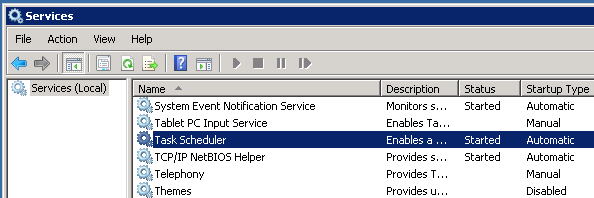
For the Mailbox server role the Task Scheduler service must also be enabled and running.
Continue to the end of this article for the final steps required.

Installing Pre-Requisites for an Exchange Server 2013 Client Access Server
For an Exchange 2013 server that will host only the Client Access server role, the following PowerShell commands are used to install the required roles and features.
Note: the Add-WindowsFeature command is quite lengthy and you will need to scroll across to be able to copy/paste all of it.
PS C:\> Import-Module ServerManager

PS C:\> Add-WindowsFeature Desktop-Experience, NET-Framework, NET-HTTP-Activation, RPC-over-HTTP-proxy, RSAT-Clustering, RSAT-Web-Server, WAS-Process-Model, Web-Asp-Net, Web-Basic-Auth, Web-Client-Auth, Web-Digest-Auth, Web-Dir-Browsing, Web-Dyn-Compression, Web-Http-Errors, Web-Http-Logging, Web-Http-Redirect, Web-Http-Tracing, Web-ISAPI-Ext, Web-ISAPI-Filter, Web-Lgcy-Mgmt-Console, Web-Metabase, Web-Mgmt-Console, Web-Mgmt-Service, Web-Net-Ext, Web-Request-Monitor, Web-Server, Web-Stat-Compression, Web-Static-Content, Web-Windows-Auth, Web-WMI

Success Restart Needed Exit Code Feature Result
------- -------------- --------- --------------
True    Yes            Succes... {Ink Support, .NET Framework 3.5.1, Config...
A restart is required after the roles and features have finished installing.
Next, install the following software in this precise order (you may notice these are the same as the Mailbox server role, except for the Office Filter Pack not being required).
- Microsoft .NET Framework 4.5 RC (I recommend downloading the standalone redistributable installer)
- Windows Management Framework 3.0 (requires restart)
- Microsoft Unified Communications Managed API 4.0, Core Runtime 64-bit
- Microsoft Knowledge Base article KB974405 (Windows Identity Foundation)
- Knowledge Base article KB2619234 (Enable the Association Cookie/GUID that is used by RPC over HTTP to also be used at the RPC layer in Windows 7 and in Windows Server 2008 R2) (restart required)
- Knowledge Base article KB2533623 (Insecure library loading could allow remote code execution) (restart required)
These updates add up to around 350mb of files. One of the hotfixes even requires you to submit your email address to be emailed the download link. I recommend you download all the updates once and keep them stored on your network for use in subsequent Exchange 2013 Preview installs.
Additional Required Steps for Any Exchange Server 2013 Server Roles
After installing the above software components, but before installing Exchange 2013, remove the Microsoft Visual C++ Beta Redistributable via the Control Panel.
This must be uninstalled before attempting to install Exchange Server 2013 Preview.

Open a command prompt and run the following commands (note that IISreset will reset any active connections to the server).
C:\> %SystemDrive%WindowsMicrosoft.NETFramework64v4.0.30319aspnet_regiis.exe -ir -enable

C:\> IISReset
The server is now ready for the installation of Exchange Server 2013.



Where did I get last 3 updates
I am not getting on this links
Hello,
I am trying to install exchange 2013 on Windows server 2008 R2 Enterprise SP1. I’ve installed all the required bundles as mentioned in this page. But, while installing exchange server 2013 i get the following error.
“the path to the language pack bundle was not found or reachable ”
Please help!
Hello Paul
I have a problem installing a second Exchange Server 2013 multirole, have two domain controllers one Windows Server 2008 R2 and one in 2012 R2 Exchange are on Windows 2012 R2 the first Exchange installed smoothly and upgrade to CU10, in time install the second Exchange Server gives me the following error, any help please.
Error:
The following error was generated when “$error.Clear();
if ($RoleIsDatacenter -ne $true)
{
if (Test-ExchangeServersWriteAccess -DomainController $RoleDomainController -ErrorAction SilentlyContinue)
{
$sysMbx = $null;
$name = “SystemMailbox{bb558c35-97f1-4cb9-8ff7-d53741dc928c}”;
$dispName = “Microsoft Exchange”;
Write-ExchangeSetupLog -Info (“Retrieving mailboxes with Name=$name.”);
$mbxs = @(Get-Mailbox -Arbitration -Filter {name -eq $name} -IgnoreDefaultScope -ResultSize 1 );
if ($mbxs.Length -eq 0)
{
Write-ExchangeSetupLog -Info (“Retrieving mailbox databases on Server=$RoleFqdnOrName.”);
$dbs = @(Get-MailboxDatabase -Server:$RoleFqdnOrName -DomainController $RoleDomainController);
if ($dbs.Length -ne 0)
{
Write-ExchangeSetupLog -Info (“Retrieving users with Name=$name.”);
$arbUsers = @(Get-User -Filter {name -eq $name} -IgnoreDefaultScope -ResultSize 1);
if ($arbUsers.Length -ne 0)
{
Write-ExchangeSetupLog -Info (“Enabling mailbox $name.”);
$sysMbx = Enable-Mailbox -Arbitration -Identity $arbUsers[0] -DisplayName $dispName -database $dbs[0].Identity;
}
}
}
else
{
if ($mbxs[0].DisplayName -ne $dispName )
{
Write-ExchangeSetupLog -Info (“Setting DisplayName=$dispName.”);
Set-Mailbox -Arbitration -Identity $mbxs[0] -DisplayName $dispName -Force;
}
$sysMbx = $mbxs[0];
}
#
Set the Organization Capabilities needed for this mailbox
if ($sysMbx -ne $null)
{
# We need 1 GB for uploading large OAB files to the organization mailbox
Write-ExchangeSetupLog -Info (“Setting mailbox properties.”);
set-mailbox -Arbitration -identity $sysMbx -UMGrammar:$true -OABGen:$true -GMGen:$true -ClientExtensions:$true -MailRouting:$true -MaxSendSize 1GB -Force;
}
else
{
Write-ExchangeSetupLog -Info (“Cannot find arbitration mailbox with name=$name.”);
}
}
else
{
Write-ExchangeSetupLog -Info “Skipping creating E15 System Mailbox because of insufficient permission.”
}
}
” was run: “Database is mandatory on UserMailbox. Property Name: Database”.
“the first Exchange installed smoothly and upgrade to CU10”
What are you using to install? You should be using the latest CU to install with, which is CU12. CU10 is already out of support.
FYI, there’s no need to install any earlier build of Exchange 2013 and then upgrade to the latest CU. You can always install directly with the latest CU.
With a very clear discussion of the issues, everything is quite transparent.
The information was quite helpful. I really like your webpage.
Many thanks for sharing.
https://www.otbody.com/schizophrenia-the-disease-that-makes-you-crazy/
Pingback: Server 2008 R2 – VPS
I’m having an issue installing Knowledge Base article KB2619234. I’ve downloaded it but it gets stuck when trying to install it. It gets stuck on this screen for hours: http://i.imgur.com/uYS6LLB.jpg
Even if try to cancel it, it gets stuck on the cancel screen. I know it’s not a Windows Update problem because I was able to successfully install other updates. What could the problem be?
Hi Paul,
I am little bit confused while installing there are certain Question
1- did i required public IP address for sending mail external?
2- if i used outlook whether i need hosting?
3- I try first time with internal IP address but the mail is not delivered on external
Actually when someone doesn’t be aware of afterward its up to other users that they will assist, so here it happens.
Pingback: Exchange 2013 DAG Setup Guide: Reposted from several sites | Infrastructure Land
Pingback: Exchange 2013 DAGs and Windows 2012 Dynamic Quorum
Pingback: Clash Of Clans Free Gems
Pingback: Installing an Exchange Server 2013 Database Availability Group | Hisham Mezher
Paul! Love your work! Many, many admins owe you a big thank you for all you’ve done for us over the years! I just wanted to update the post here, “Add-WindowsFeature” has been replaced! Instead, use Install-WindowsFeature.
http://technet.microsoft.com/en-us/library/ee662309.aspx
Thanks again!
Other question please
on 2008 R2 i need to run
prepare schema, AD forest and domain or not
FYI i am migrate exchange from 2007 to 2013 but for new server and also i will keep 2007 because i will migrate some users only not all database that is mean exchange 2013 & 2007 will be running on same AD and same domain name
please advice
Everything is quite transparent, and the obstacles are described very well.
It was quite educational. Your webpage is quite useful.
I appreciate you sharing!
https://www.petshelps.com/how-to-force-feeding-your-pet-and-make-it-happy/
please let me know on windows server 2008 R2 not need to install These comands
Add-WindowsFeature RSAT-ADDS and
Install-WindowsFeature AS-HTTP-Activation, Desktop-Experience, NET-Framework-45-Features, RPC-over-HTTP-proxy, RSAT-Clustering, RSAT-Clustering-CmdInterface, Web-Mgmt-Console, WAS-Process-Model, Web-Asp-Net45, Web-Basic-Auth, Web-Client-Auth, Web-Digest-Auth, Web-Dir-Browsing, Web-Dyn-Compression, Web-Http-Errors, Web-Http-Logging, Web-Http-Redirect, Web-Http-Tracing, Web-ISAPI-Ext, Web-ISAPI-Filter, Web-Lgcy-Mgmt-Console, Web-Metabase, Web-Mgmt-Console, Web-Mgmt-Service, Web-Net-Ext45, Web-Request-Monitor, Web-Server, Web-Stat-Compression, Web-Static-Content, Web-Windows-Auth, Web-WMI, Windows-Identity-Foundation
Hello Paul,
Do you have Exchange 2013 server videos uploaded somewhere?
Cheers,
No, nothing available yet.
Hi Paul,
Why do you need to uinstall C++ Beta Redistributable via the Control Panel.?
What happen if you don’t?
Cheers Leo
It was a requirement during the Preview build but isn’t a requirement any more. I just haven’t updated this article yet.
Hi Paul,
I cannot excite the commandline:
=======
%SystemDrive%WindowsMicrosoft.NETFramework64v4.0.30319aspnet_regiis.exe -ir -enable
=======
Window Power Shell displays error.
Could you help me , please?
Hi Paul,
I’ve 2 PCs with role as:
PC1: Active directory
PC2: Exchange 2013
1. Could I install Exchange 2013 in this topology ? And assume that could you tell me that whether I can install Exchange 2013+Active directory in same PC, please ?
2. If I can install Exchange 2013 in this topology, so In PC, which things will I need to install before deploy Exchange 2013 into PC2?
Thanks,
cuocdoi
before run exchange setup we need to run exchangeserver.exe because if not run when the exchange check the prerequest it is not continue and have error message you are not on admin groups ,… and other groups
Pingback: Microsoft Exchange 2013 RTM Downloads | ESX Virtualization
Hi Paul,
Your article are very good for understanding the exchange server. As per your guideline, I have try to install exchange server 2013 on VM’s. Client access server role is installed successfully, but the mailbox role getting error while installing.
The following error was generated when “$error.Clear();
if ($RoleProductPlatform -eq “amd64”)
{
$useAttachMode = $false;
$fastInstallConfigPath = Join-Path -Path $RoleBinPath -ChildPath “SearchCeresInstaller”;
$command = Join-Path -Path $fastInstallConfigPath -ChildPath “InstallConfig.ps1”;
$fastDefaultDataFolderPath = Join-Path -Path $RoleBinPath -ChildPath “SearchCeresHostControllerData”;
$dataFolderPath = $fastDefaultDataFolderPath;
if ([System.IO.Directory]::Exists($fastDefaultDataFolderPath))
{
$useAttachMode = $true;
}
else
{
if ($RoleIsDatacenter -eq $true)
{
$preferredDataFolderPathRoot = “D:”;
if ([System.IO.Directory]::Exists($preferredDataFolderPathRoot))
Trying to install to C: or D: drive? I’m curious about that $preferredDataFolderPathRoot = “D:”; in your output.
If you’re truly stuck try the TechNet forum for the Exchange 2013 preview. At this early stage I haven’t encountered all the install bugs cropping up for people.
http://social.technet.microsoft.com/Forums/en-us/exchangeserverpreview/threads
Hi, Paul
My Lab setup is as follows.
Total 3 Servers
1. DC
2. Client Access Role
3. Mailbox Server Role
Client access role is installed successfully, but when i try to install mailbox server role it is getting above mention error. Installation path is C Drive.
2nd Lab setup.
1. DC
2. Client Access Role and Mailbox Role
Both roles are installed successfully in this lab setup and mail send/received working fine.
Pingback: What’s New and Cool in Exchange 2013 | Jason (Izzy) Sherry's Blog
Hi Paul
Great article. however i/m stuck at trying to install exchange 2013. my original install failed, managed to uninstall it and now when try to double click on setup.exe the only thing to shows is a little window that says
Welcome to Microsoft Exchange
File c:program filesmicrosftexchange serverv15binexsetupui.exe does not exist!
what gives?
Tried an uninstall and reinstall?
Welcome to pre-release software 🙂 My own installs took a few tries on one of my servers, for no apparent reason.
cool thanks
i will try until i get it working