
Ignore Retention Holds to Remove Items from Sites and Accounts
Microsoft launched the preview of Priority Cleanup for Exchange earlier this year to remove emails from user mailboxes even when the mailboxes are under retention hold (or multiple holds). Priority Cleanup for Exchange works, but the process is complicated and takes a long time. This might be why the software remains in public preview with no public date yet in sight for general availability.
But Priority Cleanup for SharePoint Online and OneDrive for Business is a generally available solution. These policies can remove items from SharePoint sites and OneDrive accounts where retention policies and labels would otherwise block deletion. SharePoint is obviously very different to Exchange, and it should come as no surprise that things don’t work quite the same way. Let’s discuss potential use cases for Priority Cleanup and how these policies work.

Cleaning up Teams Recordings
The title used for the documentation covering Priority Cleanup for SharePoint is interesting. Microsoft proclaims that the feature is intended to “Override holds to clean up files for Copilot and reclaim storage.”
Specifically, Microsoft targets Teams meeting recordings and transcripts stored in OneDrive for Business (personal meetings) and SharePoint Online (channel meetings), explaining that these files are large and go stale after one month or so. Of course, background jobs remove most Teams meeting recordings automatically after the automatic expiration date stamped on these files expires, so what we’re really talking about are the relatively few recording files that have Microsoft 365 retention labels.
Why does Microsoft focus on files that already have a retention mechanism? The imperative is probably to remove old meeting transcripts (stored in the same MP4 file as the meeting video and audio recordings) to avoid any chance that Copilot will pick up and use the transcript content in its responses.
The focus on removing large recording files stored in OneDrive for Business is also interesting. Unlike SharePoint Online, where storage quota is limited and expansion is expensive, users receive generous storage quotas for OneDrive for Business to encourage them to store their files in the cloud (here’s how to report the current quota used by OneDrive accounts), so using retention labels to keep a few Teams recordings for longer than normal isn’t such a big deal.
OneDrive and Preservation History
The other example cited by Microsoft focuses on the Preservation Hold library. As the text notes, when items exist in the Preservation Hold library for a OneDrive for Business account, the account cannot be deleted until the retention period for the last item lapses. Microsoft goes on to say: “Priority cleanup can delete these files instead of waiting for the expiration period to end, so you can then delete the site for the OneDrive account and reclaim that OneDrive storage space.” They suggest that priority cleanup can help account deletion for leavers by making sure that nothing remains in OneDrive.
Well yes, but once again OneDrive for Business storage is not a big deal for most tenants. What is a big deal is that a GDPR article 17 right to erase request might force a tenant to remove all the files relating to someone (the data subject), including any files retained in the preservation hold library.
Preservation Hold Library and SharePoint Storage Quota
Because of the way that it captures file copies, the SharePoint Online retention mechanism based on the preservation hold library can occupy a great deal of expensive storage. The problem was worse in the past, but even with the improvements made a couple of years ago, it’s easy for sites to use 20% or more of the occupied space for the preservation hold library. The advent of intelligent versioning for SharePoint Online can reduce the amount of space used for file edits because of the way that it removes unnecessary versions. However, intelligent versioning clashes with retention policies, which retain all versions including those kept in the preservation hold library, so priority cleanup is the only way to regain expensive SharePoint Online storage.
Clearing out old files from the preservation hold library might sound like an excellent way to recover quota, but rushing to mess with content preserved for compliance purposes is an exercise requiring thorough checking to avoid losing data that might be required.
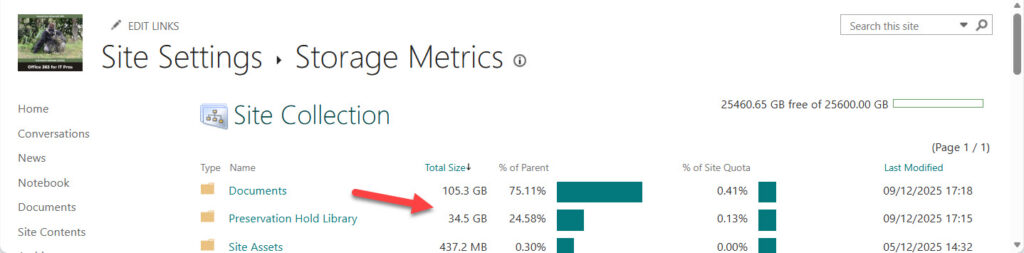
The Office 365 for IT Pros eBook team has used a SharePoint Online site since 2014 to store chapter and other files used for the book. Because the book is republished monthly, there have been many file updates and deletions over the last 11 years, with the result that the Preservation Hold library occupies 34.5 GB, or 24.58% of the quota used by the site (Figure 1). There are probably many other SharePoint Online sites in similar circumstances.
Given that we publish a completely new version of the book every July, it’s highly unlikely that anything held in the Preservation Hold library that’s more than three years old will be needed. All the final versions of files for each edition are available in folders, so cleaning up the Preservation Hold library by removing unwanted items seems like a good idea.

Creating a SharePoint and OneDrive Priority Cleanup Policy
At first look, it seems like Priority cleanup for SharePoint doesn’t support sites connected to Microsoft 365 Groups. However, a pop-up message says that the group mailboxes and SharePoint Online sites used by Microsoft 365 Groups can be processed if an adaptive scope is used to find the target sites. Even then, a policy can only process Exchange content or SharePoint content. It can’t process both.
Policy Configuration and Tweaking
Figure 2 shows the policy configuration to use an adaptive scope to target the SharePoint sites owned by Microsoft 365 Groups for processing. You can add one or more adaptive scopes to a policy.
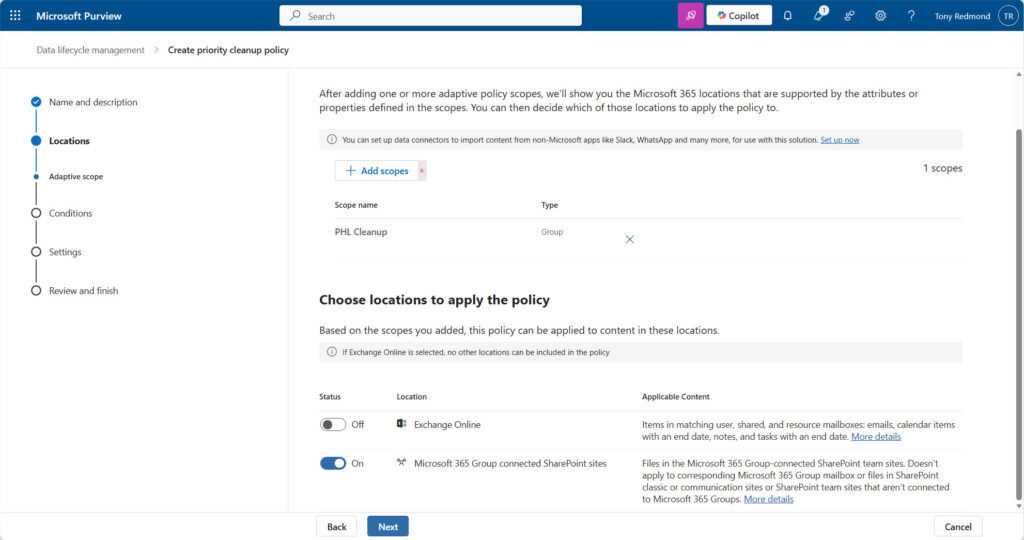
I used a simple adaptive scope based on a value assigned to a custom attribute for group mailboxes. Here’s how I updated the groups that I wanted to target and checked the set of groups with the attribute. Naturally, the adaptive scope should report the same set!
Set-UnifiedGroup -Identity '1579cfcc-10fa-4f3d-9c17-e1835bf600f9' -CustomAttribute15 'PHLCleanUp'

Get-UnifiedGroup -filter {CustomAttribute15 -eq 'PHLCleanUp'} | Format-Table DisplayName

DisplayName
-----------
Ultimate Guide to Office 365
R&A Projects
Office 365 for Exchange Professionals
After identifying the target sites, the next step is to construct a KeyQL query to find items in those sites, decide what should happen to found items (usually delete as soon as possible). It might take a few tweaks to the KeyQL query before the policy delivers acceptably accurate results. The query I used finds items in the Preservation Hold library that were last modified before January 1, 2023:
(ParentLink:PreservationHoldLibrary) AND (LastModifiedTime<=2023-01-01)
The best way to check a query is to run an eDiscovery content search as this exposes more information than a policy simulation. The content search using the same KeyQL query found 4,760 items occupying 20.1 GB, or 59% of the total quota occupied by the Preservation Hold library.
The final step is to assign responsibility for approvers to review deletion of items found by the policy that are currently held by a retention policy. Those responsible for overseeing item deletion must be assigned the eDiscovery Admin RBAC role before they can approve removal.
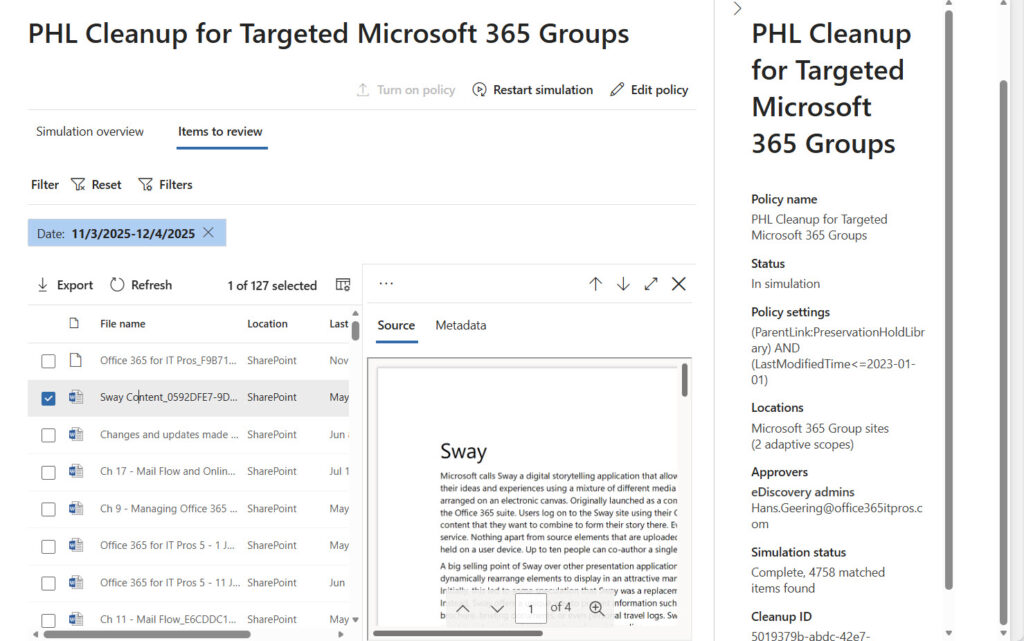
Interestingly, Purview doesn’t allow a new Priority cleanup policy for SharePoint to be activated immediately. Instead, you’re forced to run the policy in simulation mode to check that the policy settings find the correct items. Once the simulation finishes, you’ll see how many items the policy found (if you tested the filter with a content search, the results should be similar), and you can view sample results (Figure 3).
If the simulation results are satisfactory, a designated approver (not the user who creates the policy) can turn on the policy to start processing items. Processing means that the policy finds target items and stamps those items with a special retention label created especially for the policy. Subsequently, background SharePoint jobs use the retention label to find the targeted items to apply the action configured in the policy. Items marked as records with retention labels are not processed.
If you edit an active policy to add or remove an adaptive scope, Purview puts the policy back into simulation mode to ensure that the change finds the intended items.
From the description above, it should be obvious that preparing for Priority cleanup takes some time. Once the policy is turned on, further time is necessary for the background processes to spin up. Take some time out and wait before checking to see what the policy does.
Checking Policy Progress
Apart from noting the enabled state of the policy, the Purview UX doesn’t give administrators details about the progress an active policy. There’s nothing reported about how many matching items are found (or the locations of the items), or how many items have received the special retention label, or even how many items have been moved into the recycle bin. All we know is that something is happening (Figure 4).
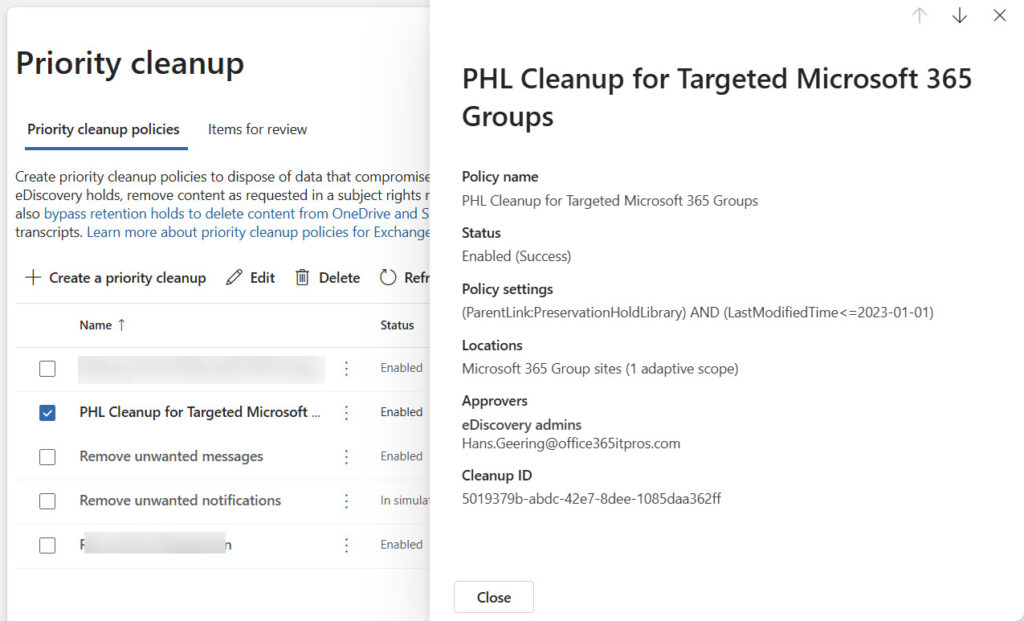
If you’ve worked with Priority cleanup for Exchange, you’ll probably open the Items for review tab because this is where Purview shows items awaiting a decision to delete or relabel. However, items processed by Priority cleanup for SharePoint go direct to the second stage recycle bin unless they’re held by an eDiscovery case, so the Items for review tab is often a blank slate. Different methods are needed to find out what’s happening behind the scenes.
The Activity Explorer is a good way to check policy processing. In Figure 5, the Activity Explorer is configured to report label application and label change events for a single day (the day after enabling the policy). Examining the details of the selected Label applied event reveals that the special retention label was applied by an auto-labeling policy to an item in the Preservation Hold library of one of the sites found by the adaptive scope used by our policy. This information tells us that the policy is stamping target items correctly.
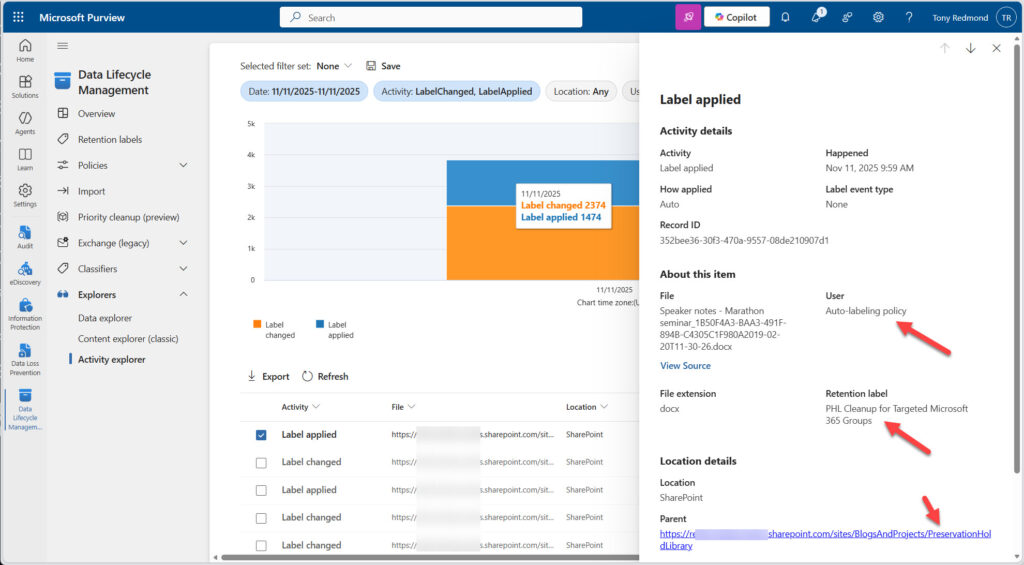
Another way to track policy activity is to check the unified audit log for PriorityCleanupTagApplied events captured when a policy processes items. Use the GUID or name of the special retention label (the Cleanup ID highlighted in policy properties) to identify the events for whichever policy you need to track.
After stamping items, a SharePoint Online background job moves the stamped items into the second-stage recycle bin, where the items remain for 93 days before permanent removal (a site administrator can always empty the recycle bin before the 93-day period expires). The move actions are captured with PriorityCleanupFileRecycled events. Here’s an example of searching the audit log for cleanup events over the last month:
[array]$Records = Search-UnifiedAuditLog -StartDate (Get-Date).AddDays(-60) -EndDate (Get-Date).AddDays(1) -Formatted -SessionCommand ReturnLargeSet -ResultSize 5000 -Operations 'PriorityCleanupFileRecycled', 'PriorityCleanupTagApplied'
$Records = $Records | Sort-Object Identity -Unique
$Records | Group-Object Operations -NoElement | Sort-Object Count | Format-Table Name, Count -AutoSize

Name                        Count
----                        -----
PriorityCleanupFileRecycled    42
PriorityCleanupTagApplied    3846
A more comprehensive version of the code is available from GitHub.
The content of the audit events will tell you about the files processed by SharePoint. For recycled files, you can check the second stage recycle bin in a target site to compare the files stored there with the audit events. In all cases, expect that several days are needed for a policy to complete processing to label and move all matching items.
Like Exchange Priority Cleanup Except in Some Important Respects
On the surface, Priority cleanup for SharePoint is quite like its Exchange counterpart. However, differences exist because the disposition of mail items follow different processes to SharePoint items. It’s wise to read through the documentation before beginning to create a policy even if you’ve worked with Priority cleanup for Exchange in the past. The biggest difference is that approval to remove items is only necessary when items are subject to eDiscovery holds. The purpose of Priority cleanup is to remove holds that otherwise keep items in a tenant, and that’s exactly what it does.
The lack of disposition control might concern you. The argument for delete without review is that:
- Creating a Priority cleanup policy and approval from two administrators (one to create the policy, the other to approve the simulation results) indicates the acquiescence of the organization to remove items without further oversight.
- The volume of files that a policy might find might be very large and require too much time for a reviewer to process. It takes much longer to review a 20-page Word document or complex Excel spreadsheet than it does to look through the average email.
- Items held by an eDiscovery case are not deleted without approval. Thus, nothing required for eDiscovery purposes at the point when the Priority cleanup policy runs will be removed until an eDiscovery administrator approves their deletion.
- Items deleted by a policy stay in the SharePoint second stage Recycle Bin for 93 days. During that period items can be retrieved by administrators if required. Items in the second stage Recycle Bin are not indexed and therefore inaccessible through searches.
You might or might not agree with the logic of these arguments. Before activating any Priority cleanup policy, make sure that all interested parties involved in corporate compliance are happy. And remember, once a policy has completed its intended processing, remove the policy.
Sometimes Removing Retained Items is Necessary
Let’s face it: life is not perfect and even the best governance framework can require tweaking to meet evolving business needs. Priority cleanup is a form of tweaking that allows tenants to remove unwanted content with good reason. Because the ability of Priority cleanup to override retention settings challenges the concept of immutable retention, its operation requires solid preparation and oversight.
And remember, a Priority cleanup policy isn’t for ever. Once a policy has finished its work, delete the policy, just to clean up.